
How to create an in-app message?
Learn how to create in-app messages, customise design and buttons, choose recipients, and send or schedule messages inside the app.
In this article, you will learn how to create an in-app message.
Unlike push notifications, in-app messages work within the app and appear as modal windows, so pop-ups over other content.
The user always sees the in-app message and has to interact with it in order to continue.
This feature is very powerful, but can quickly become annoying if used too often.
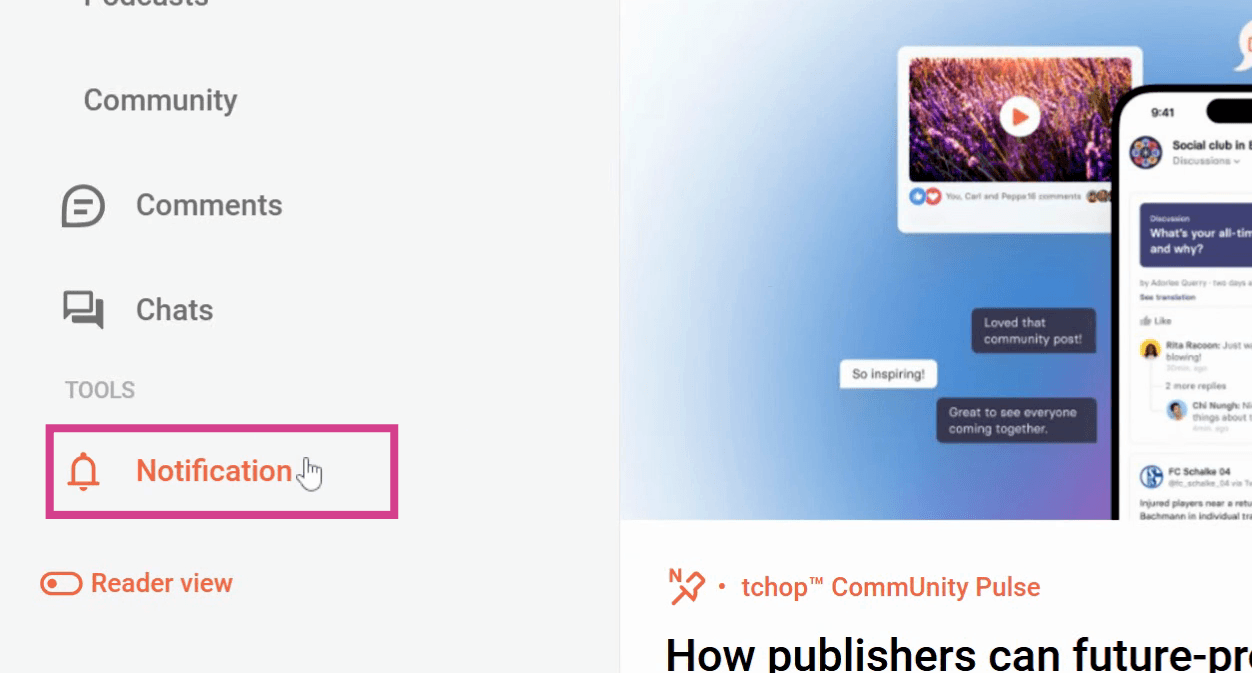
Step 1: Go to Notification in the Admin Dashboard.
Step 2: Click on In-app message.
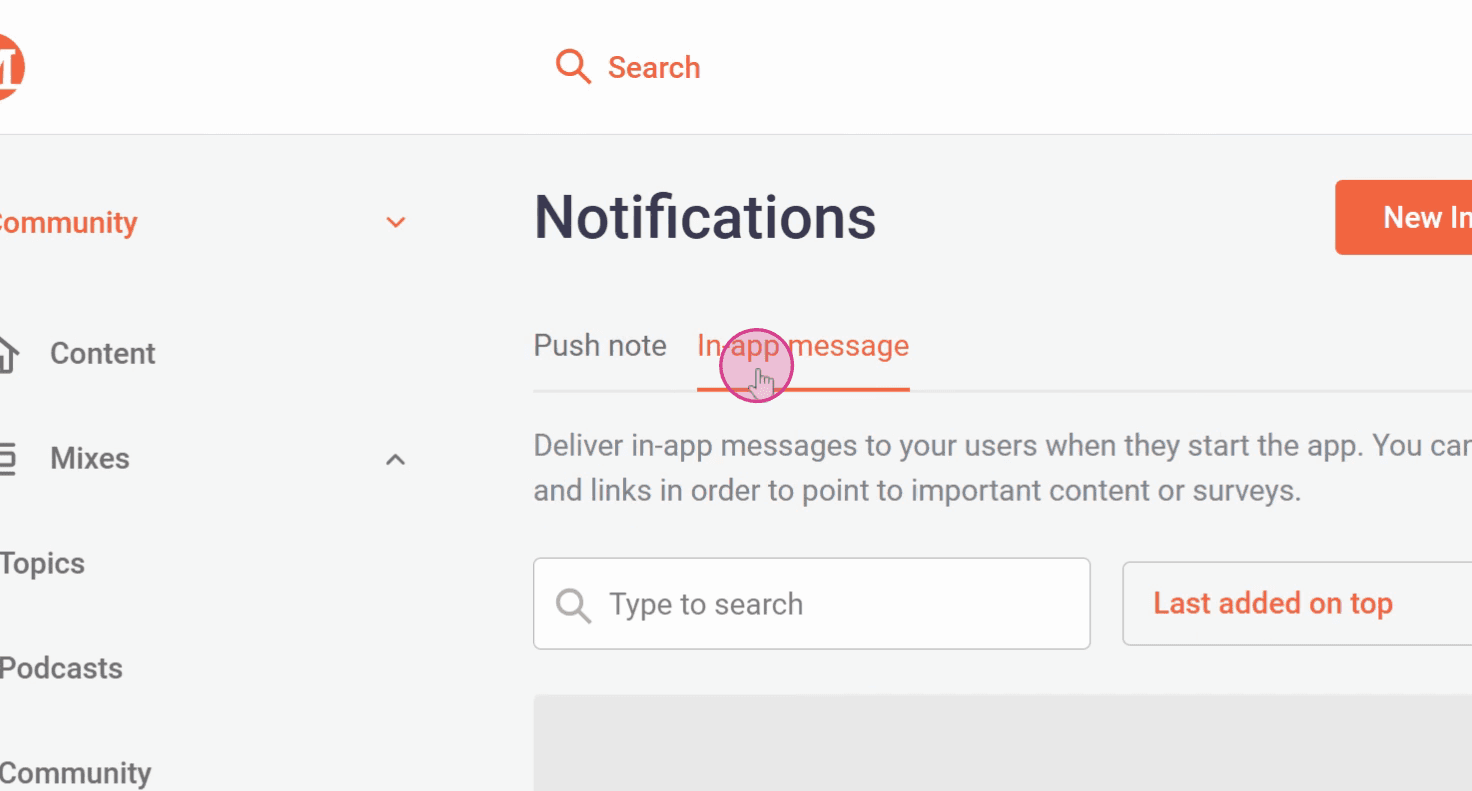
Step 3: Click on New In-app message.
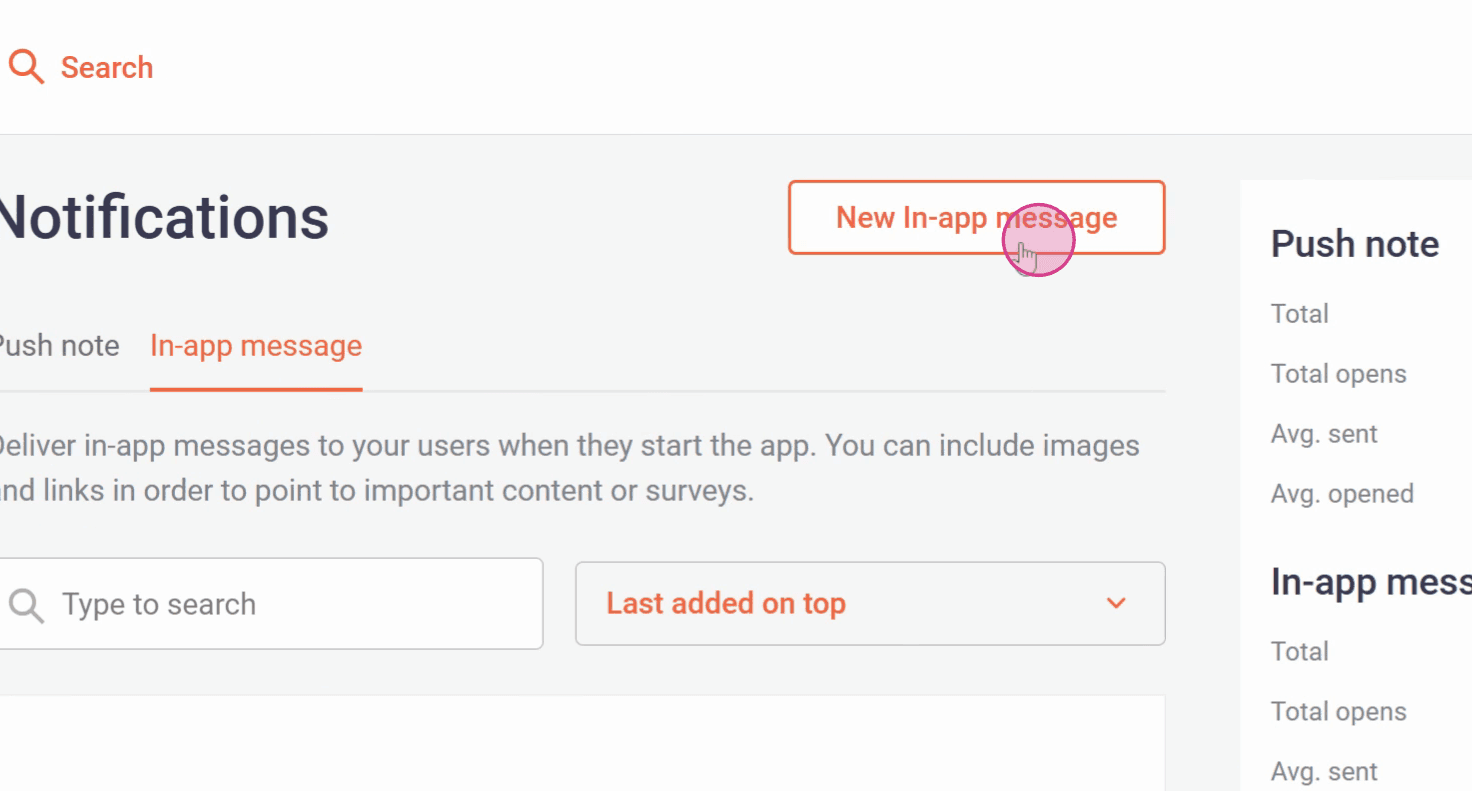
Step 4: A new window will open. Here, you can first add media and then select the title and message for the In-app message.
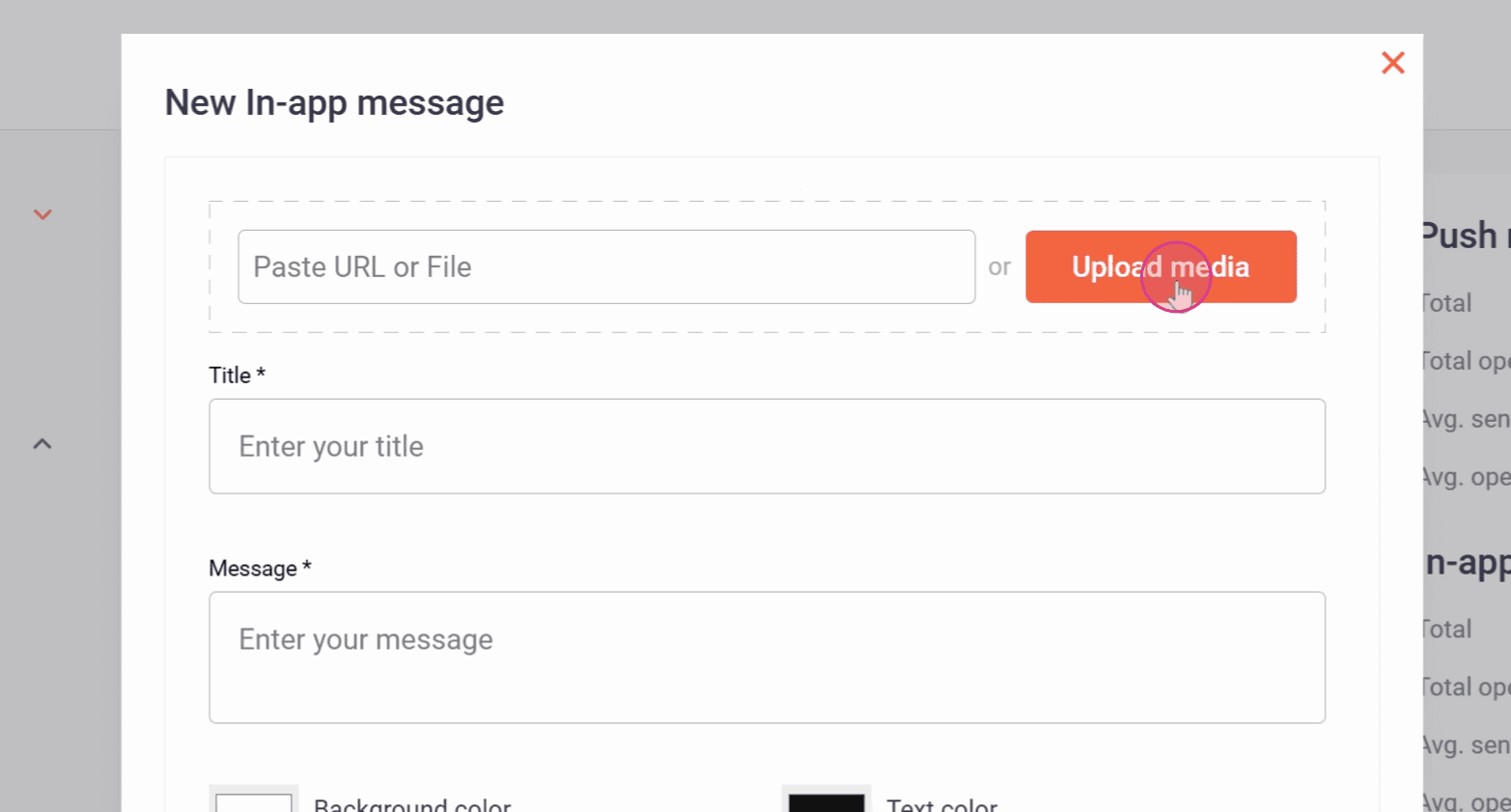
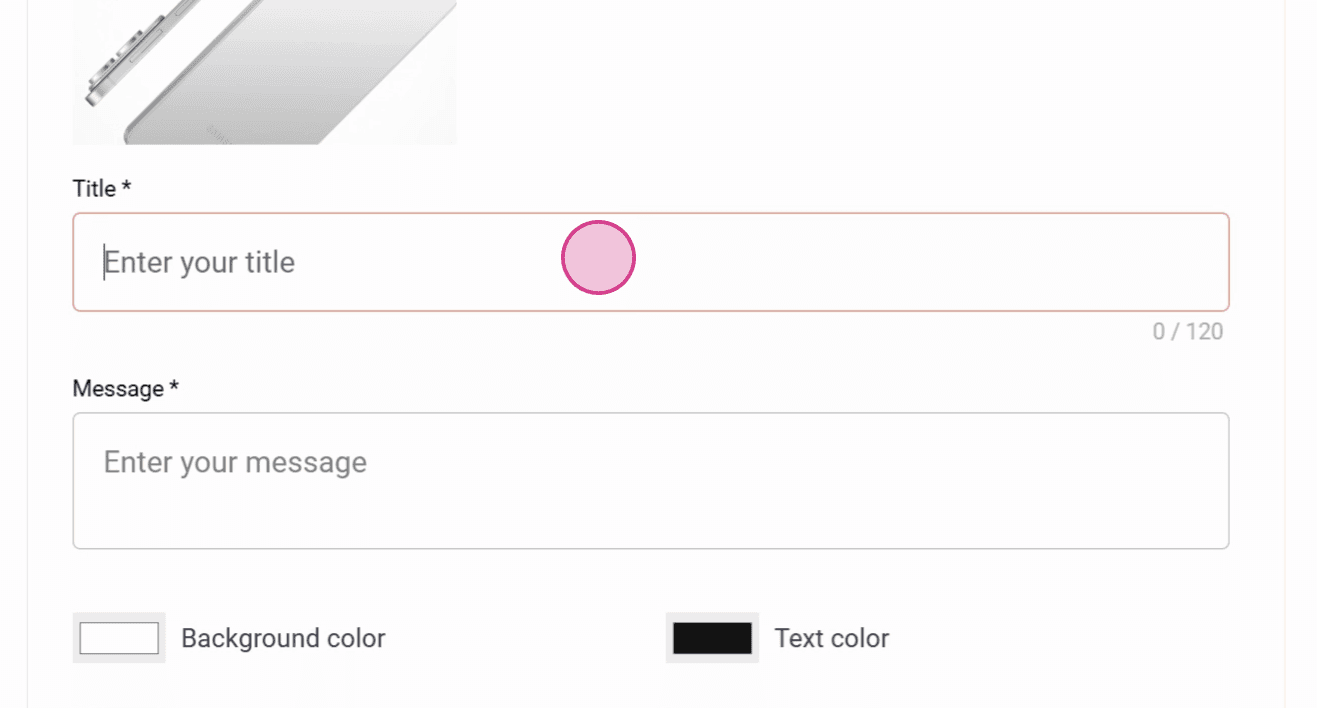
Step 5: You now have the option to change the background and text color of the notification as well as the background and text color of the button.
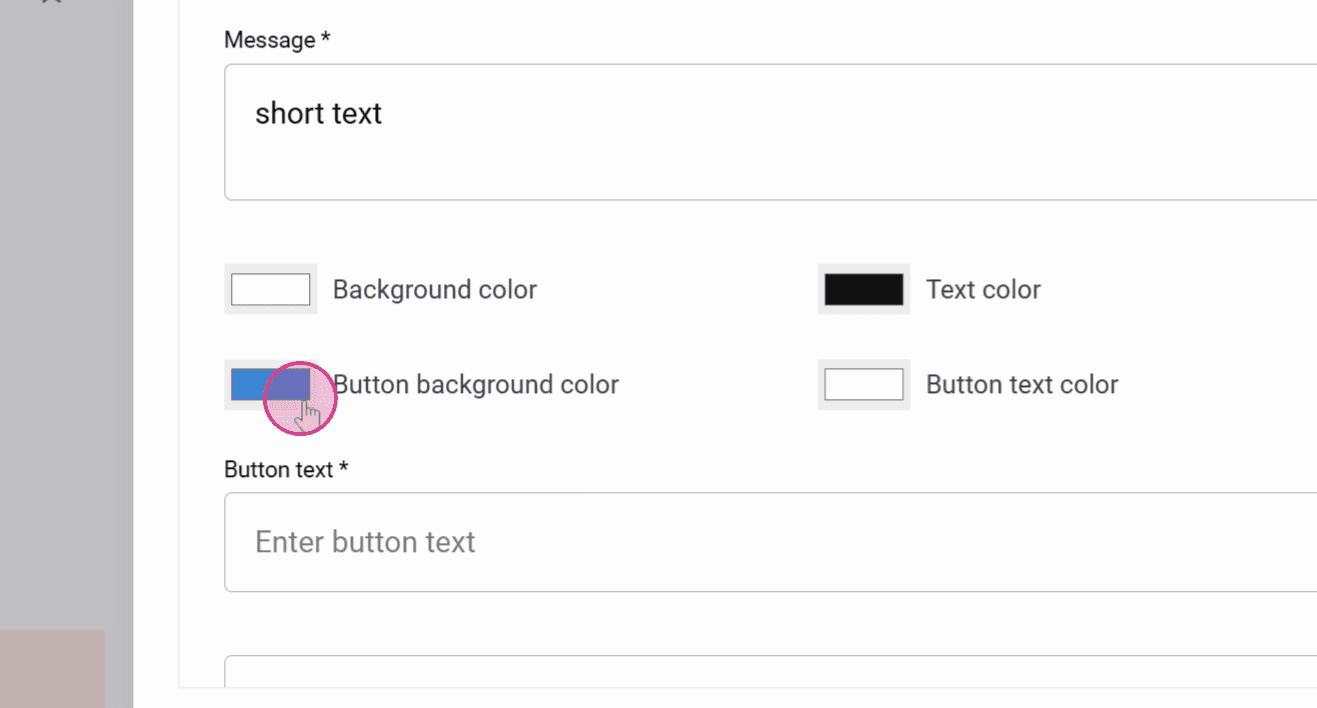
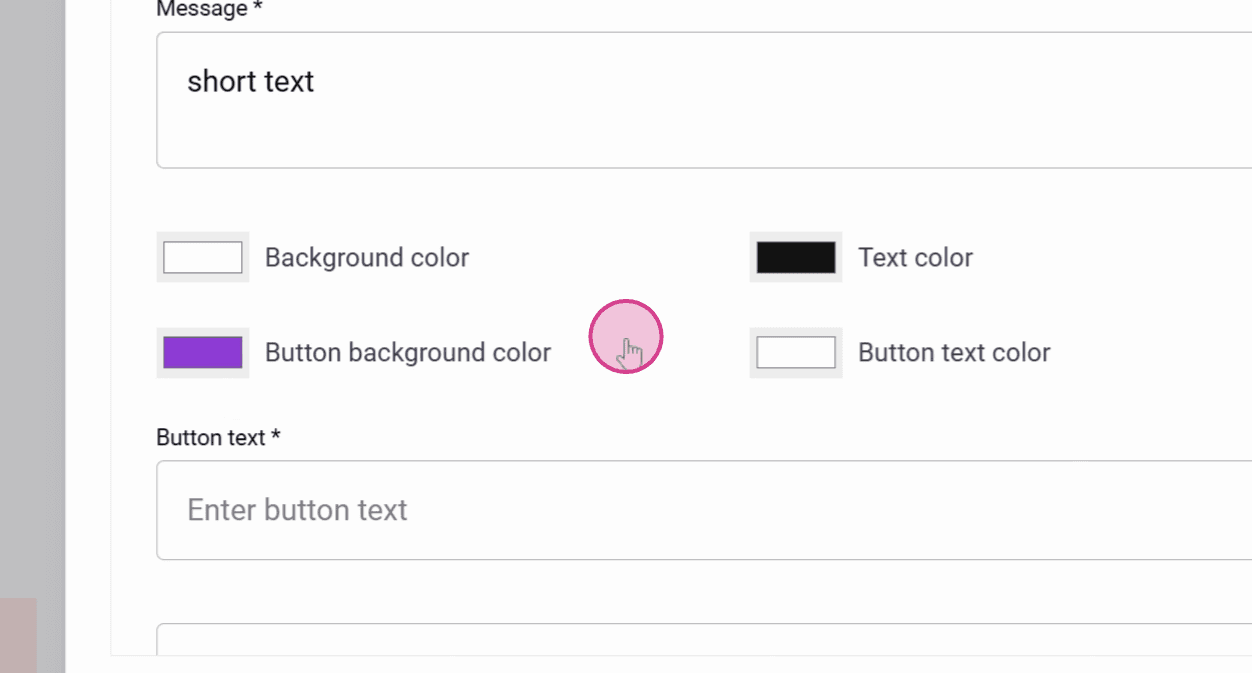
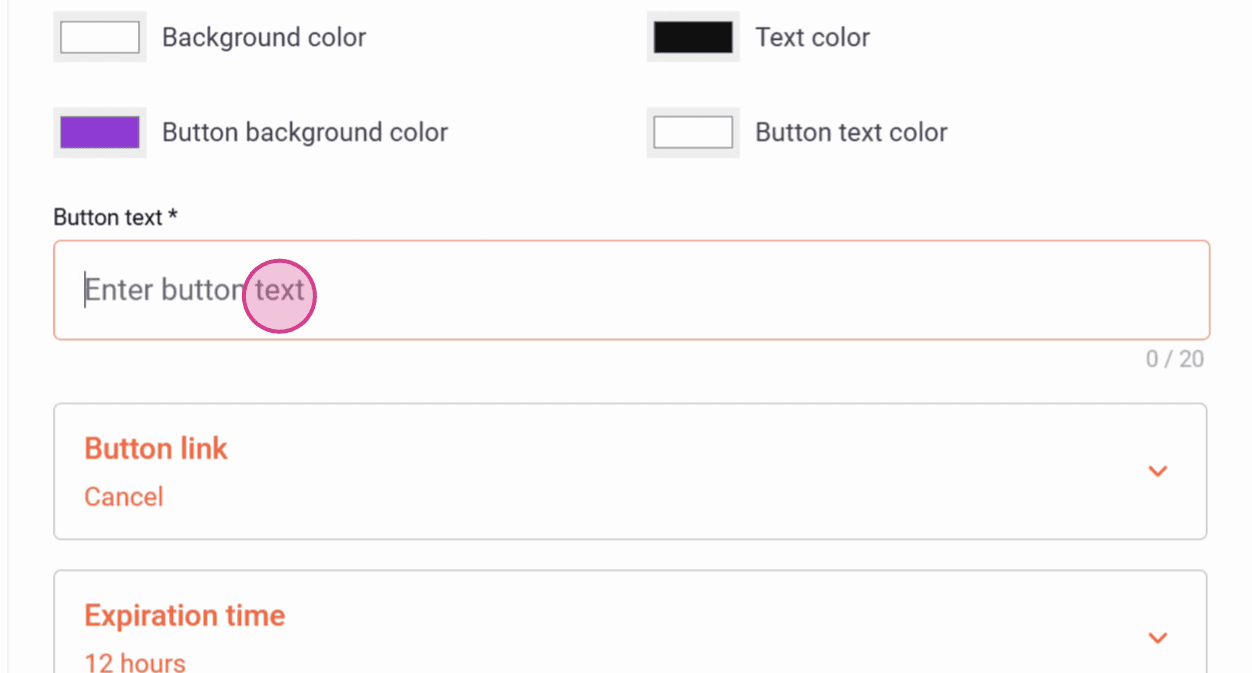
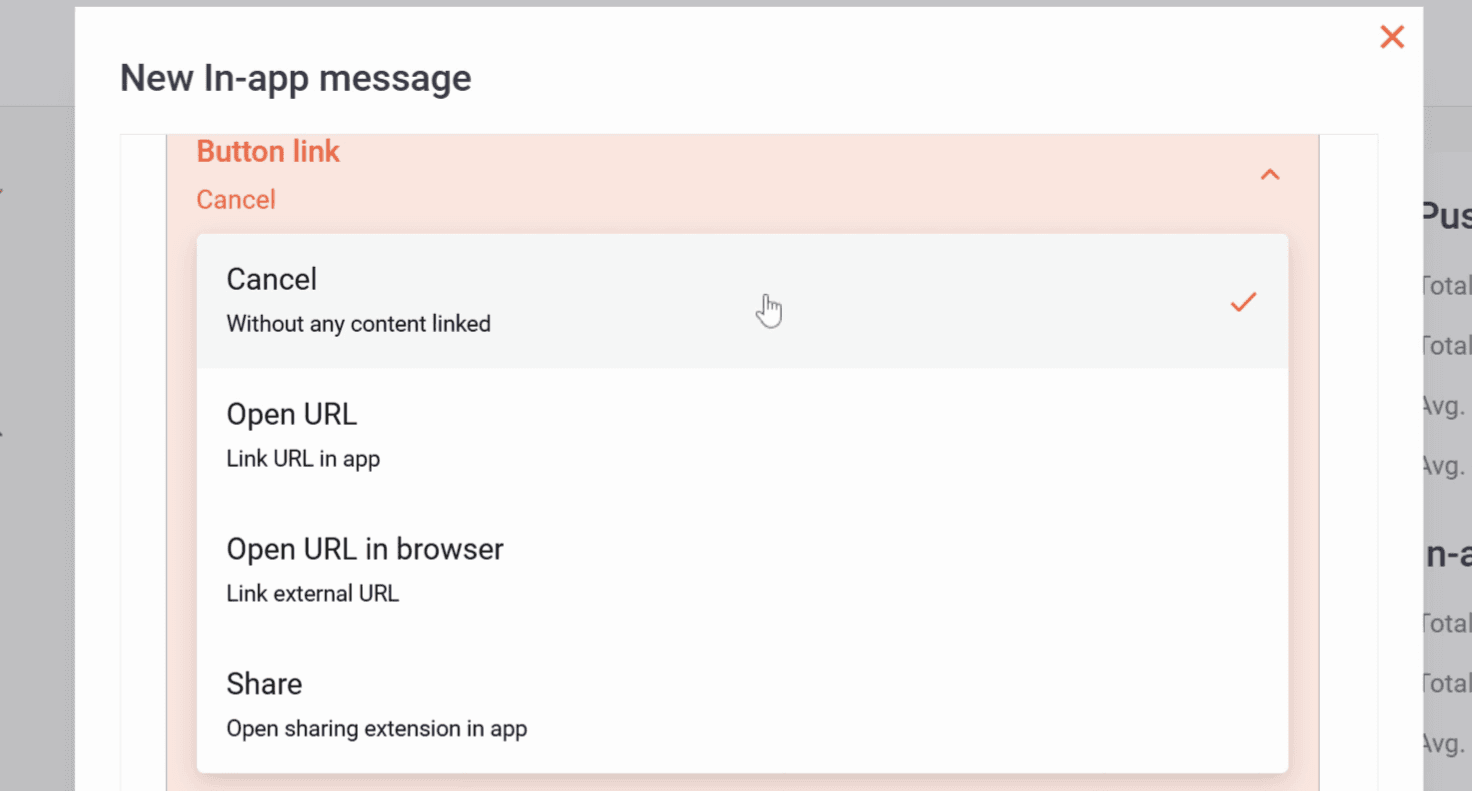
Step 6: Next, add the text to the button and select what you want the button to do when pressed:
Cancel - Without any content linked
Open URL - Link URL in app (URL opens in the app)
Open URL in browser - Link external URL (URL opens outside the app in an external browser)
Share - Open sharing extension in the app
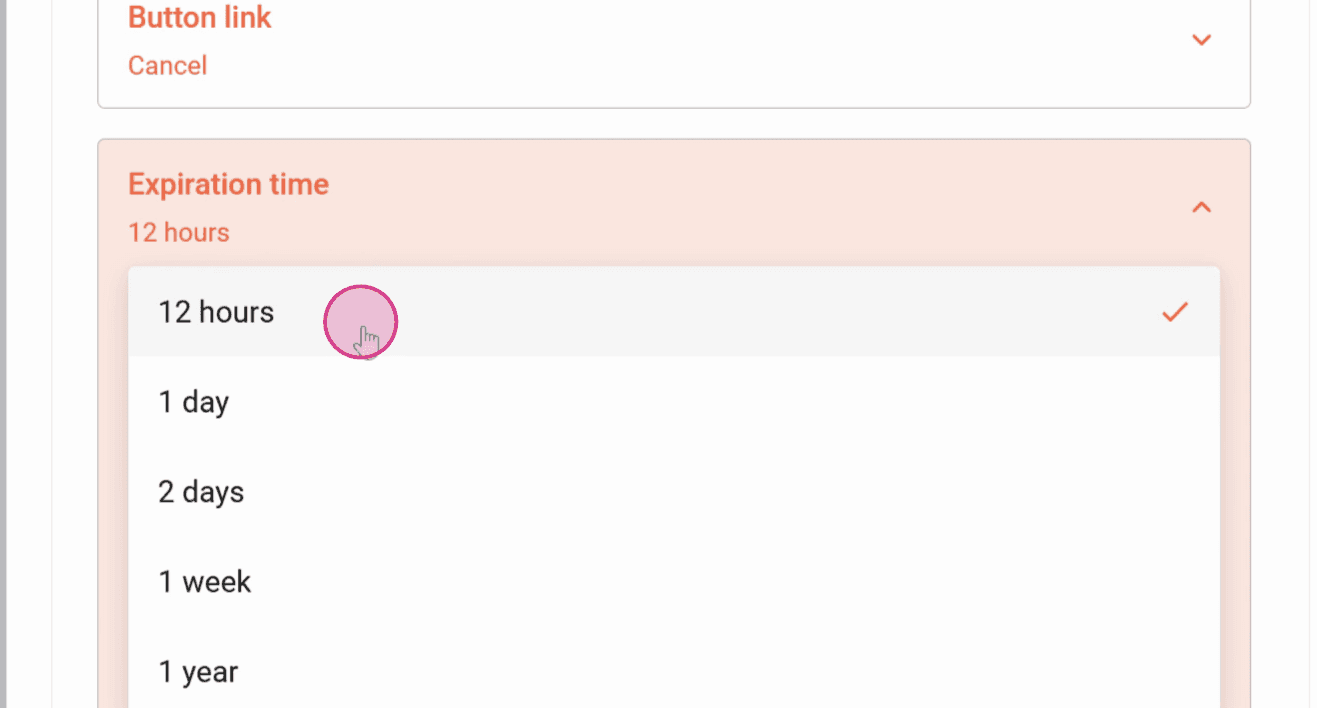
Step 7: Select the Expiration time for the in-app message.
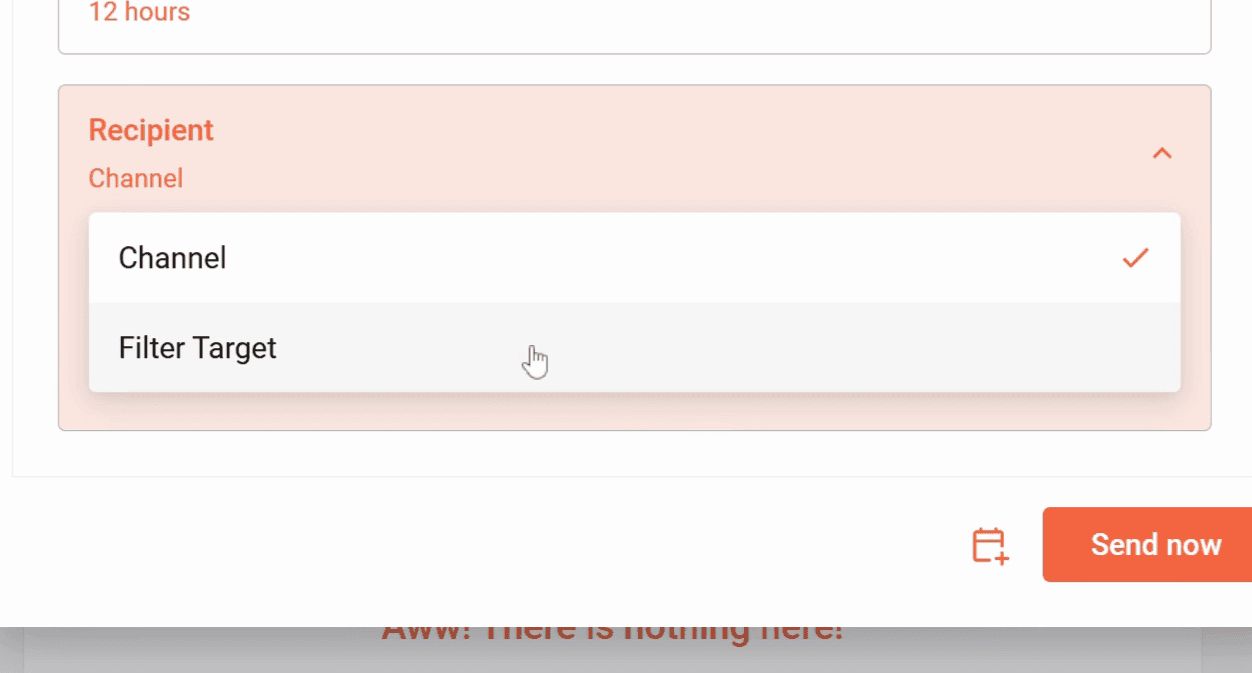
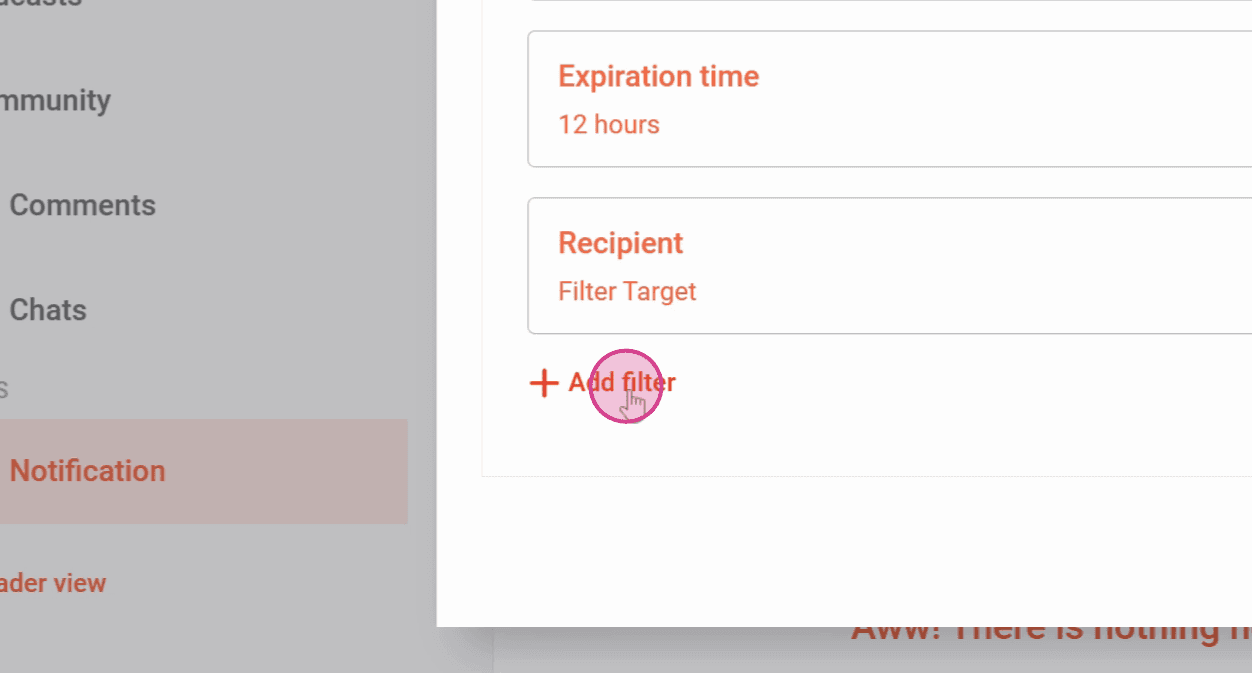
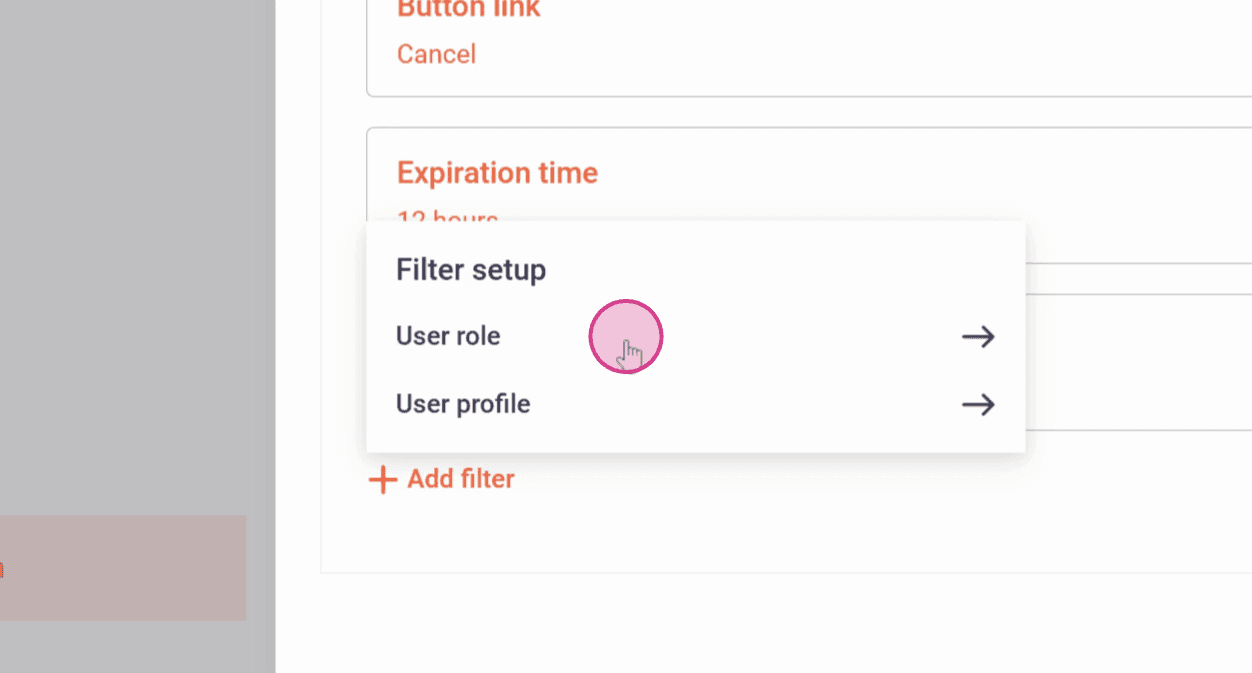
Step 8: Select the Recipient of your in-app message. You can either select the Channel or add extensive filters for users.
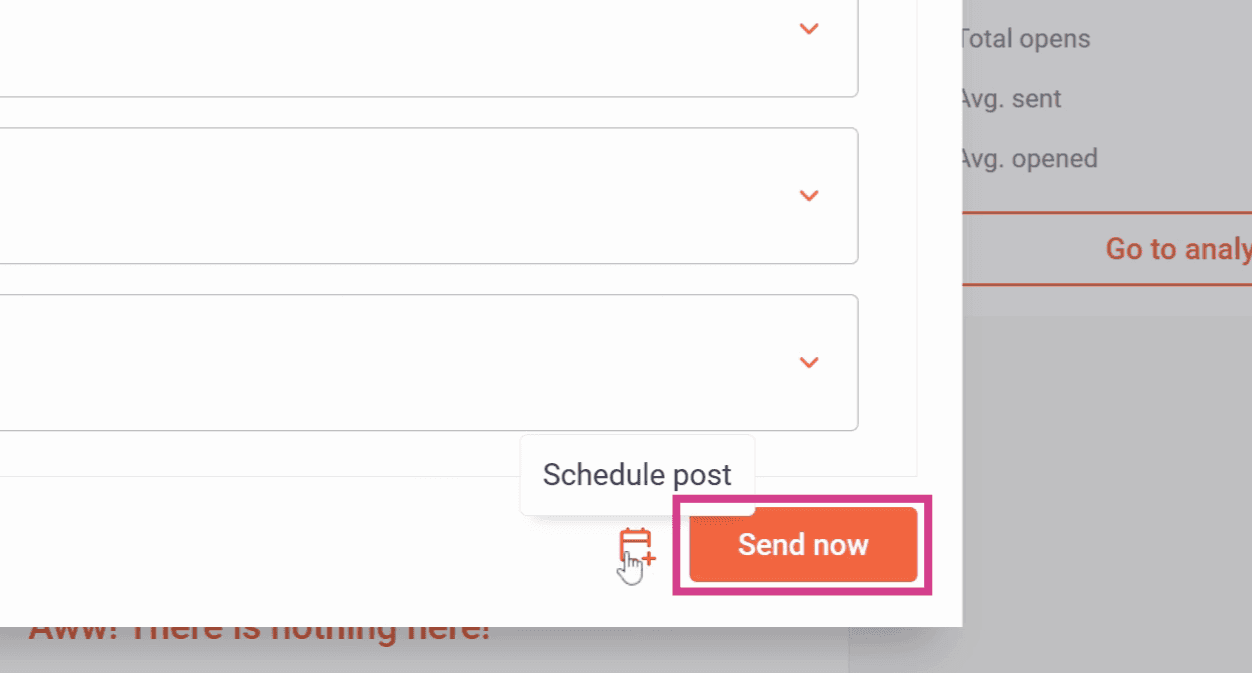
Step 9: Click Send now to send your in-app message.
Optionally, you can also schedule the post.
Now you know how to create an in-app message.
Related articles